
Folders and workspaces
Folders
Section titled “Folders”Everything in Reqjet is a file in a folder you open with Add folder (Ctrl+O). The tree on the left shows:
- Folders and sub-folders, as they are on disk.
.httpfiles, each with its requests listed under it.- Runbooks: Markdown (
.md) files that contain a```httpblock. Other Markdown files stay hidden. - Scripts: JavaScript (
.js) files that callsend("…"). Other.jsfiles, such as request handlers, stay hidden.
You can open several folders at once, and the tree’s header then says Folders. One folder can’t be opened inside another that’s already open.
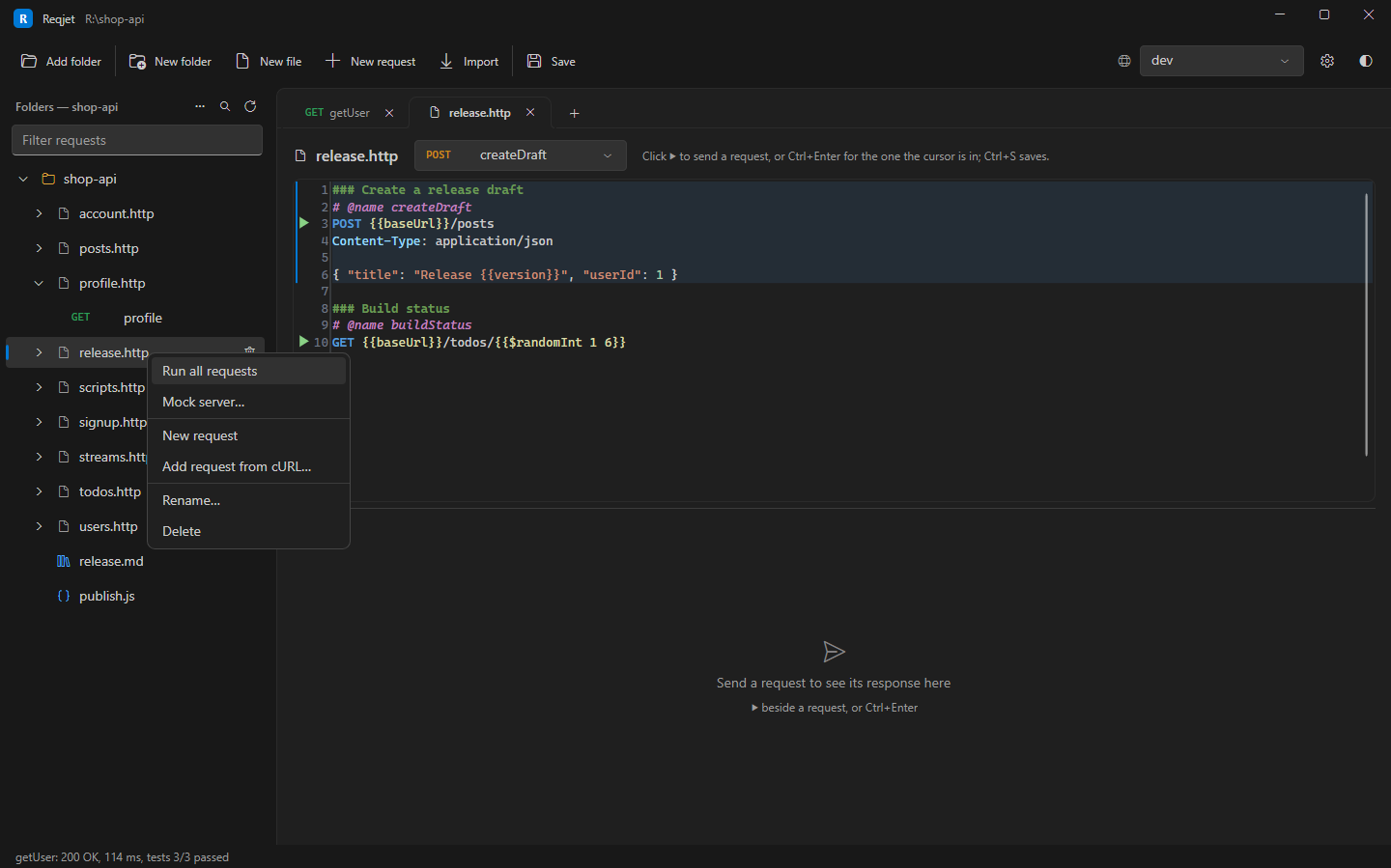
Right-click a folder for New file, New folder, New runbook…, New script…, Import, Run all requests, Mock server…, Rename and Delete. Right-click a request for Duplicate, Copy as cURL, Copy as code, Quick load test…, Compare environments…, Check CORS… and more.
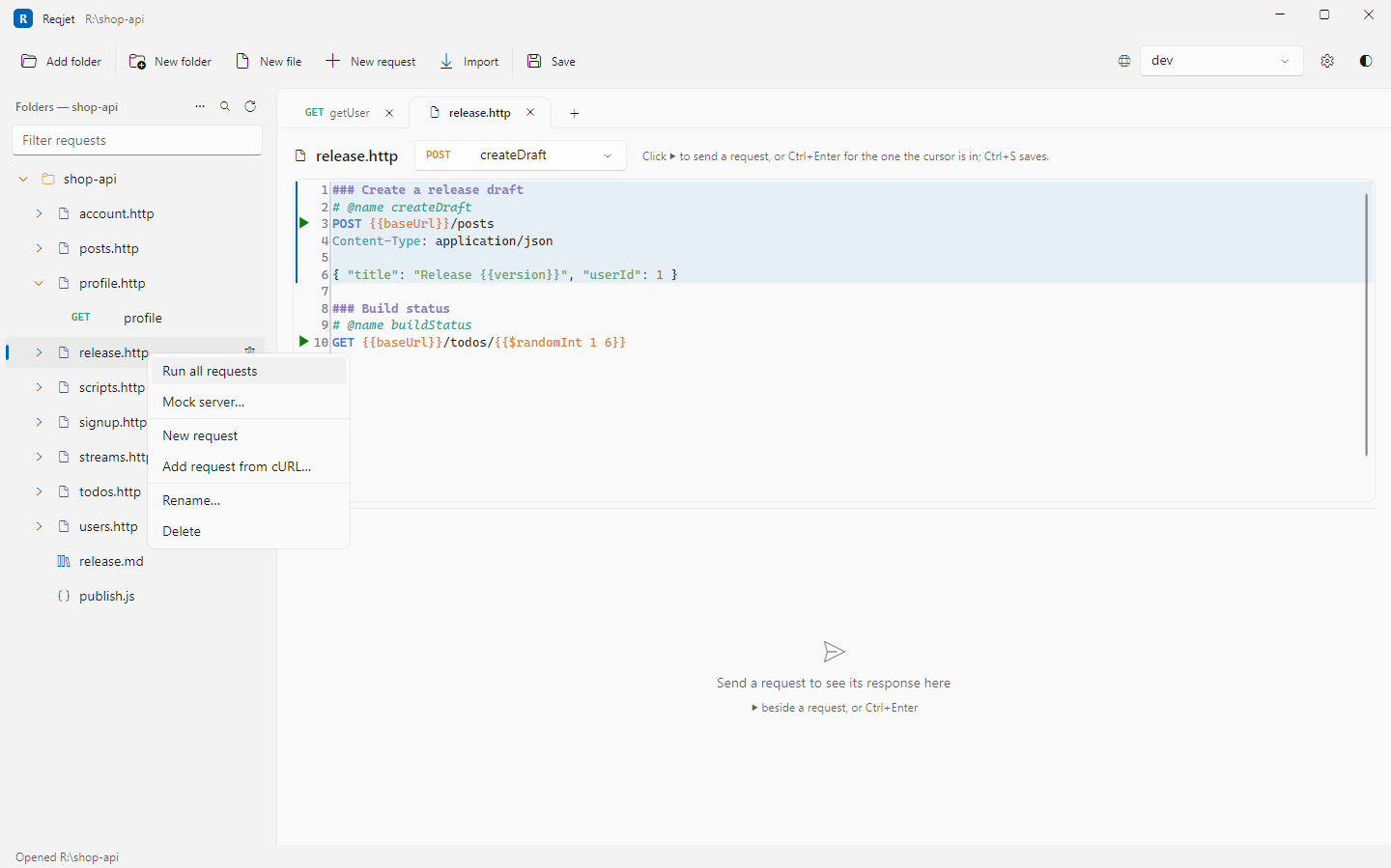
Changes made outside Reqjet show up straight away, whether you edit a file in another editor or switch branches in git. If a folder can’t be watched for changes, the status bar says so; press Refresh to pick up changes.
Workspaces
Section titled “Workspaces”For one app, a folder or two is usually all you need. When you work on several apps, save each one’s folders as a
workspace: a .reqjet-workspace file that lists them, like a Visual Studio solution. Then switch between apps in
one step.
{ "folders": [ { "path": "api" }, { "path": "tests/smoke" }, { "path": "../shared-requests" } ]}Saving a workspace
Section titled “Saving a workspace”Choose ⋯ by the tree’s header, then Save workspace as…. It saves the folders open now, and suggests saving in the folder that holds them all, usually the repository. That way the paths are written relative to it, so the workspace opens wherever the repository is cloned, on any operating system. A folder on another drive is written as a full path.
You can also start from New workspace, on the start page or in the ⋯ menu, which creates an empty workspace for Add folder to fill.
Opening and switching
Section titled “Opening and switching”- Open workspace (on the start page or in the ⋯ menu), or a recent workspace from either list, replaces the folders open now. It asks first if anything is unsaved.
- Open in new window opens a workspace in a second Reqjet window, to have two apps side by side.
- Double-clicking a
.reqjet-workspacefile, or runningReqjet orders.reqjet-workspace, opens it. - Reqjet reopens the workspace you had open when it last closed.
When a workspace is open, the tree’s header shows its name and its file is in the title bar. Adding or closing a folder updates the workspace file straight away; nothing else changes it.
Your tabs and environment stay yours
Section titled “Your tabs and environment stay yours”Each workspace remembers its open tabs and the environment chosen for each folder, so switching back brings them back. These are kept in your user settings, not in the workspace file, so a committed workspace file only changes when its folders do.
A folder that isn’t there
Section titled “A folder that isn’t there”A folder that isn’t on disk, because it isn’t cloned yet or is on a drive that isn’t connected, shows greyed out as not found. It stays in the workspace file. Press Refresh once it’s there, or Remove it.
Running everything
Section titled “Running everything”⋯ › Run all requests sends every request in every open folder, in tree order, in one Run tab with pass or
fail for each. On the command line, reqjet run orders.reqjet-workspace does the same (see
Command line).
Close workspace closes it and brings back the folders you had open on their own before it.