
Debugging
When a response isn’t what you expected, Reqjet shows more than the body.
Timing and the connection
Section titled “Timing and the connection”The Timing tab shows where the time went: DNS lookup, connecting, the TLS handshake, waiting for the server, and downloading. Waiting is the time from sending the request to the first byte of the response, which is mostly the server working on it; the others are this machine and the network.
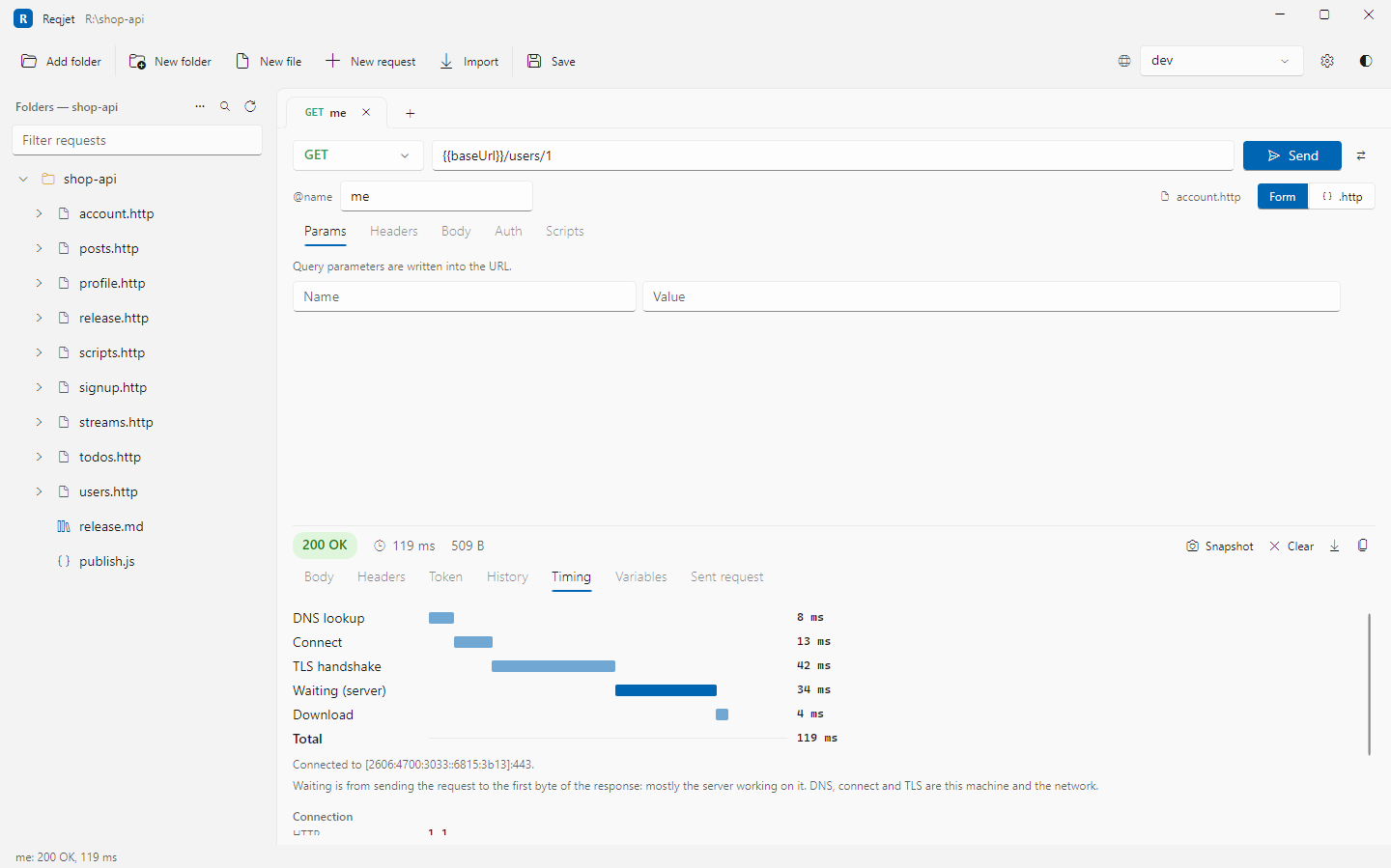
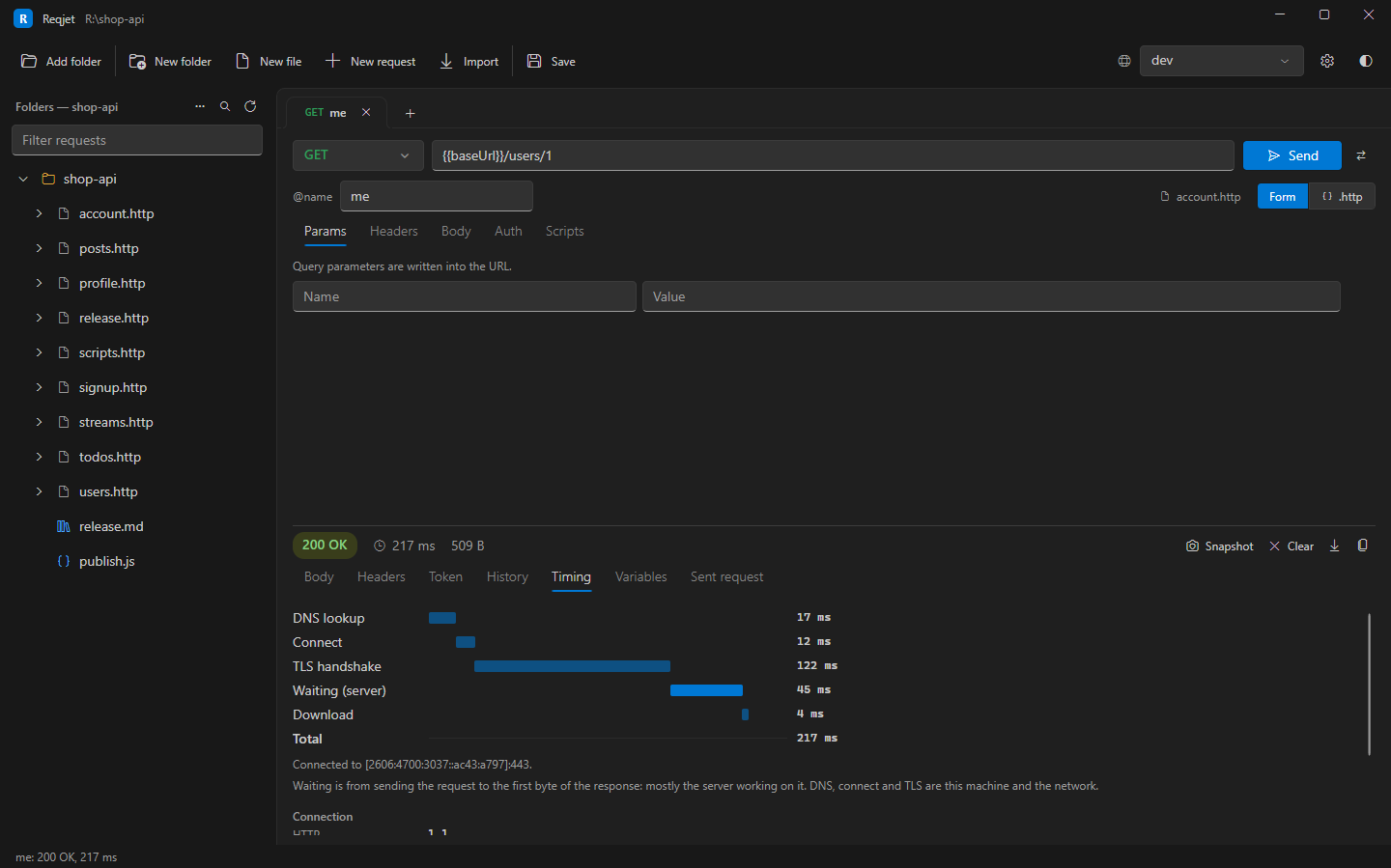
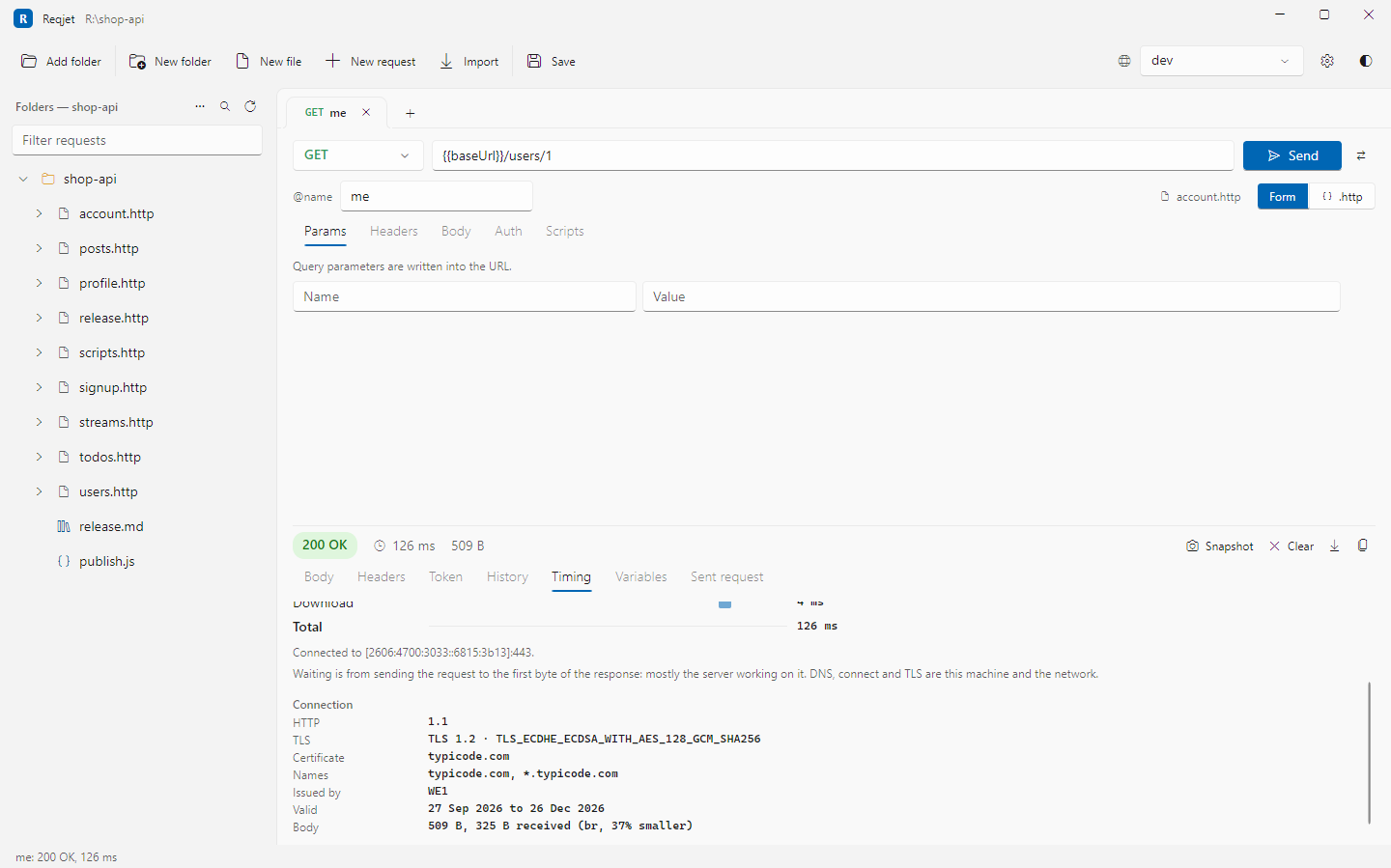
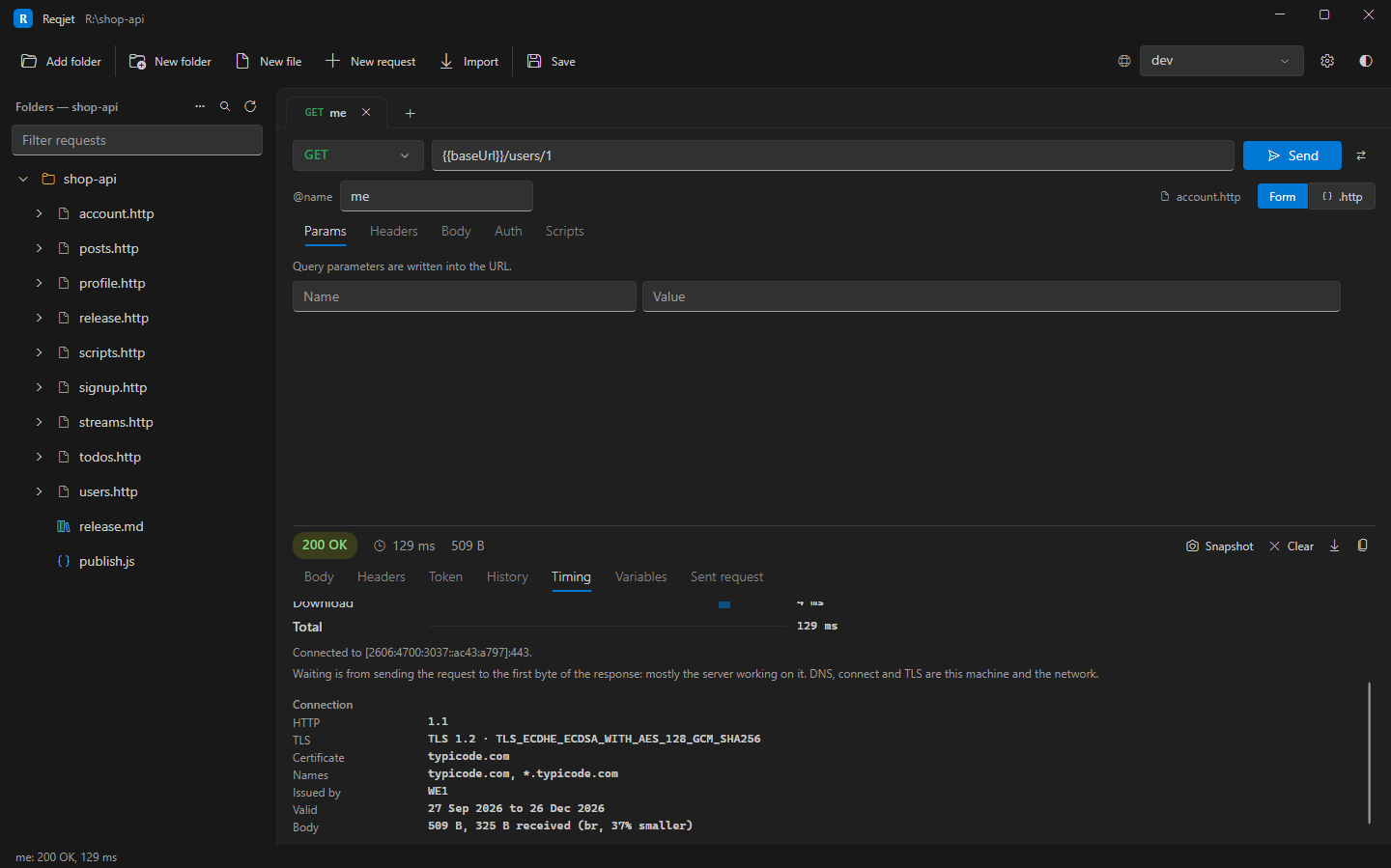
Below the timings, the connection:
- The HTTP version, and the TLS version and cipher.
- The server’s certificate: its names, issuer and valid dates, with a warning when it expires within a month.
- The body’s size as received, when it was compressed (gzip, br or deflate).
Tokens
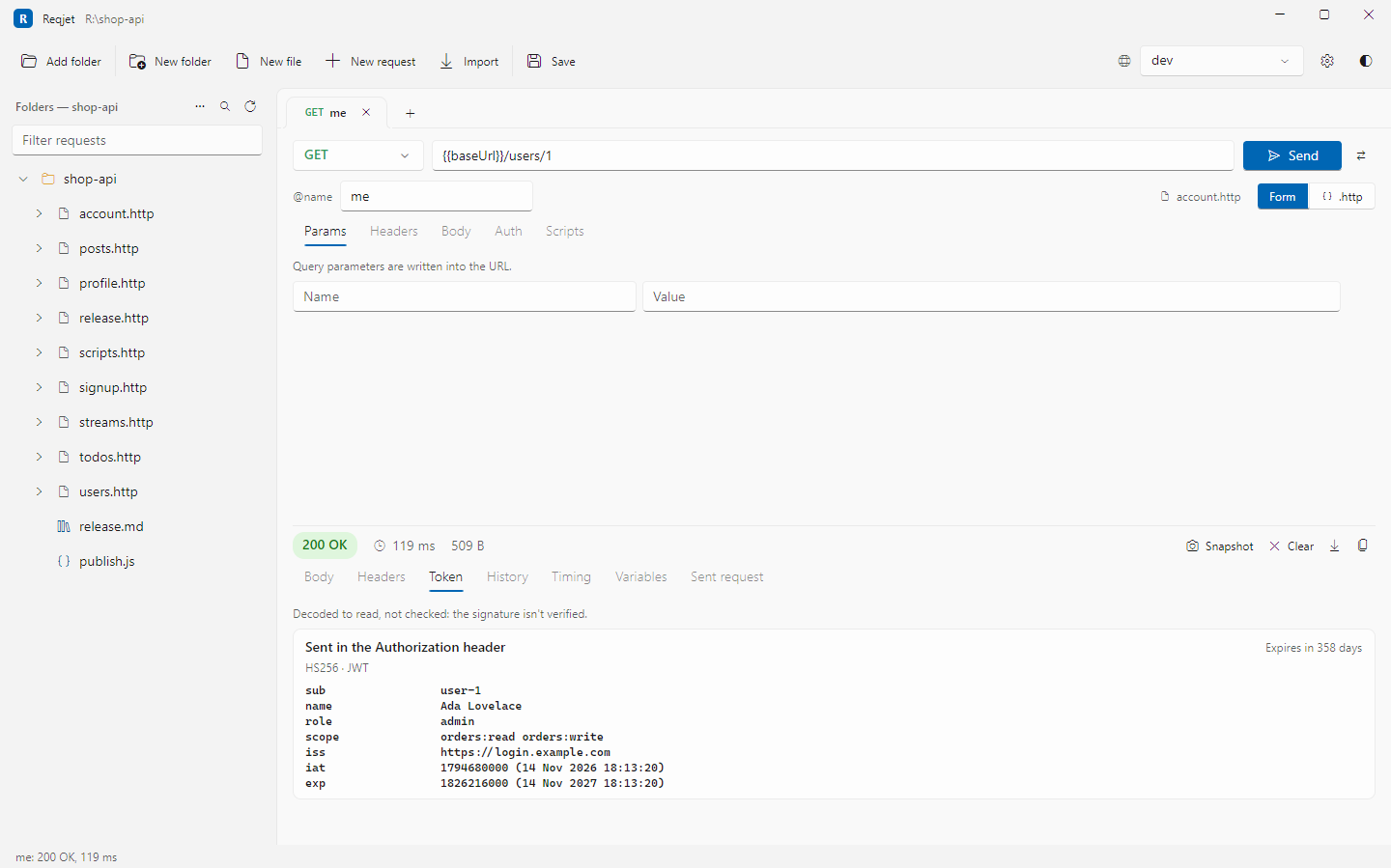
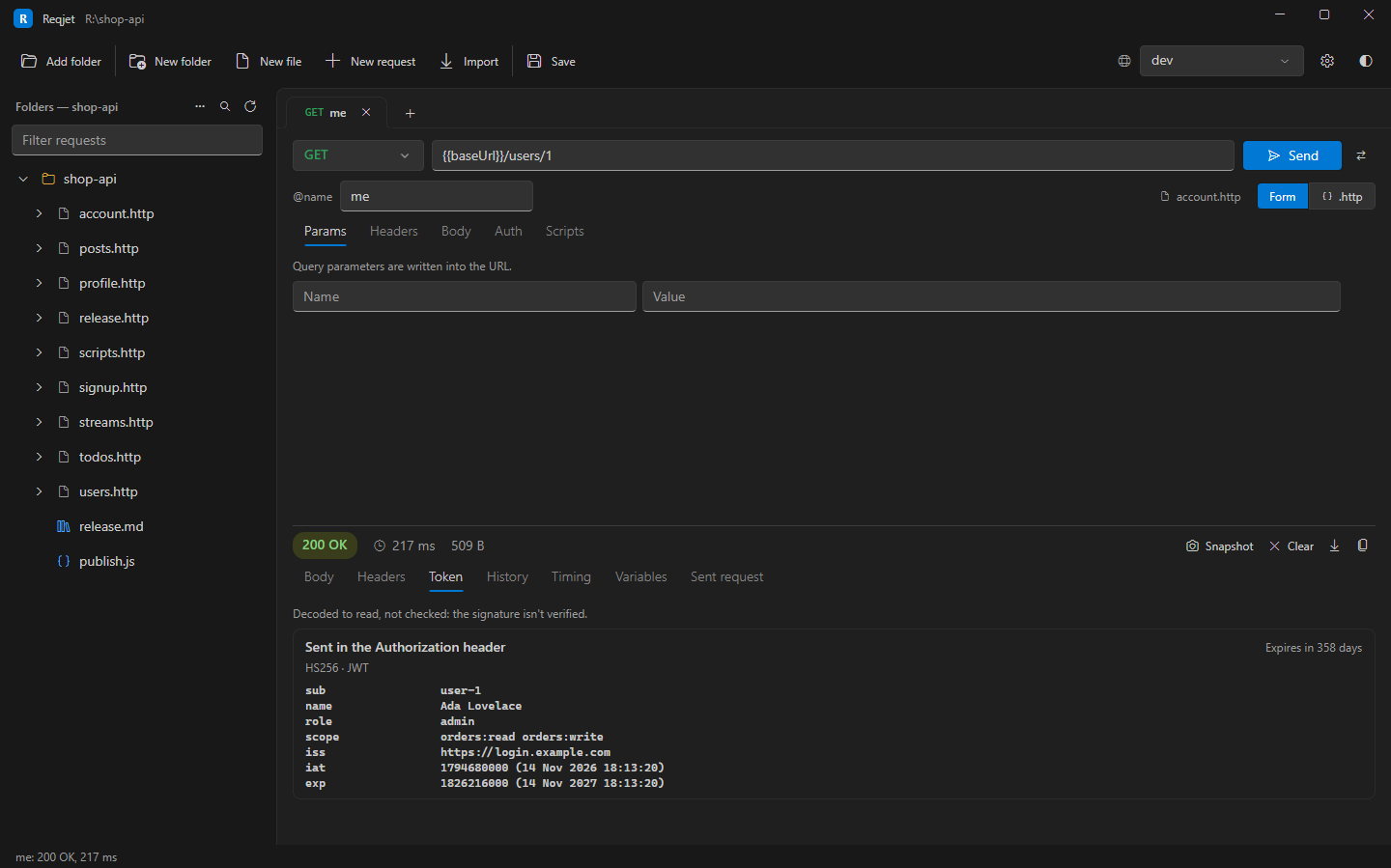
Section titled “Tokens”The Token tab decodes any JWT the request sent (such as Authorization: Bearer …) or the response returned (such
as access_token): its header, its claims with readable dates, and whether it has expired. A 401 sent with an expired
token says so.
Tokens are decoded so you can read them, not verified.
Cookies
Section titled “Cookies”The Cookies tab lists each cookie the response set, with its domain, path, expiry and flags (Secure, HttpOnly, SameSite), and whether it was:
- stored for the environment;
- deleted, because it had already expired;
- rejected, with why, such as a domain the site isn’t allowed to set.
It also lists the cookies the request sent. Cookie values are masked until you reveal them.
Cookies are kept per environment, in memory only. # @no-cookie-jar stops a request sending or storing them.
Redirects
Section titled “Redirects”Redirects are followed, unless the request has # @no-redirect. The Sent request tab lists each request on the
way, with its status, where it led and the cookies it set. The Timing tab says when its bars only cover the last
request of the chain.
Cookies set on a redirect, such as a sign-in’s 302, are stored and sent on the next request, as a browser would. The
request’s own Authorization and Cookie headers only follow a redirect to the same host.
Check CORS
Section titled “Check CORS”Check CORS… on a request (right-click its tab or its row in the tree) checks it as a browser would. Give it the
web page’s origin, such as http://localhost:3000, and it shows:
- whether a preflight is needed, and how the server answers it;
Access-Control-Allow-Origin,-Methods,-Headersand-Credentials;- which response headers the page’s code can read.
Only GET and HEAD requests are actually sent. For anything else, only the preflight is, as sending the request
could change something.
Save as HAR
Section titled “Save as HAR”Save as HAR (the download button by Copy, or on a Run tab for the whole run) writes the requests and responses as a HAR file. Attach it to a bug report, or open it in a browser’s developer tools.
Authorization headers, cookies, API keys, passwords and tokens are replaced by (hidden), unless you choose
with credentials.
Variables
Section titled “Variables”The Variables tab lists the {{variables}} that went into the request, and where each value came from, such as
“environment ‘dev’ (private)” or “@baseUrl in this file”. It’s the quickest way to find out why a request went to the
wrong place.